


Last Updated: November 15, 2026
Quick Summary
AI camera system offline alerts fail because teams configure detection but never tune the notification layer that reports a camera has gone dark. Set the trigger to fire after three to five consecutive missed heartbeats, enable a recheck pass, and test by unplugging a camera to time the alert.
- An IPC offline alarm means the camera stopped reporting, not that motion or AI detection fired.
- A common starting point is three to five consecutive misses to absorb a single dropped packet.
- A timeout window under about 60 seconds produces nuisance alarms on busy networks.
- Cloud-routed alerts fail when the internet drops, so use local processing or a failover path.
- Enable the recovery event too, since many platforms ship with it off by default.
Table of Contents
- What an IPC Offline Alarm Actually Means
- How AI Camera Systems Detect a Lost Connection
- Security Camera Offline Notification Setup, Step by Step
- IP Camera Offline Alerts When the Internet Goes Down
- Troubleshooting Camera Disconnection and Recovery
- Building a Camera Connection Loss Audit Trail
- Book a Demo and Test Offline Alerts on Your Own Cameras
- Frequently Asked Questions
What an IPC Offline Alarm Actually Means
An IPC offline alarm is a notification that a specific IP camera has stopped reporting to the system that manages it.
Here is the uncomfortable truth. A camera that loses power, drops its network link, or gets unplugged produces no alarm by default.
The gap matters because a dead camera is a blind spot, and blind spots attract the wrong kind of attention.
How AI Camera Systems Detect a Lost Connection
Detection starts with a heartbeat. The recorder, VMS, or cloud service expects each camera to check in on a fixed interval.
There are three detection methods in common use, and most systems run more than one at once:
- Heartbeat polling: the system sends a ping or keepalive to the camera every few seconds or minutes and expects a reply. A missed reply is the earliest signal, but it is also the noisiest because a busy switch or a brief Wi-Fi drop can swallow one.
- Stream monitoring: the system watches the RTSP or ONVIF stream for video frames. If frames stop arriving for a set window, the stream is declared lost. This catches cases where the camera answers pings but has stopped encoding, which heartbeat alone will miss.
- Power and network state reporting: where the device supports it, the camera reports its own health, PoE draw, and link status. This is the most reliable signal but the least universal, because older cameras and many budget models do not expose it.
Here is the part most guides miss. The right threshold depends on how long a camera can be offline before service is affected, so setting uptime requirements helps align alert timing with the needs of retail and hospitality operations.
Tuning it comes down to four numbers you should find and write down for each platform:
- Heartbeat interval: how often the camera is expected to check in. Shorter intervals detect faster but generate more traffic and more noise.
- Consecutive-miss count: how many check-ins must fail before the system acts. A common starting point is three to five misses, which absorbs a single dropped packet without hiding a real outage.
- Timeout window: the total elapsed time before the alarm fires. This is the number your team actually feels. A window under about 60 seconds produces nuisance alarms on busy networks; a window over several minutes leaves a real outage unnoticed.
Set it too tight and you get flooded with nuisance alarms your team learns to ignore.
One more distinction worth knowing: an offline alarm is not the same as a video-loss or obstruction alarm. Offline means the system cannot reach the camera at all.
Security Camera Offline Notification Setup, Step by Step
Security camera offline notification setup comes down to three decisions: what triggers the alert, who receives it, and how you prove it works. Get those right and the rest is repetition across your sites.
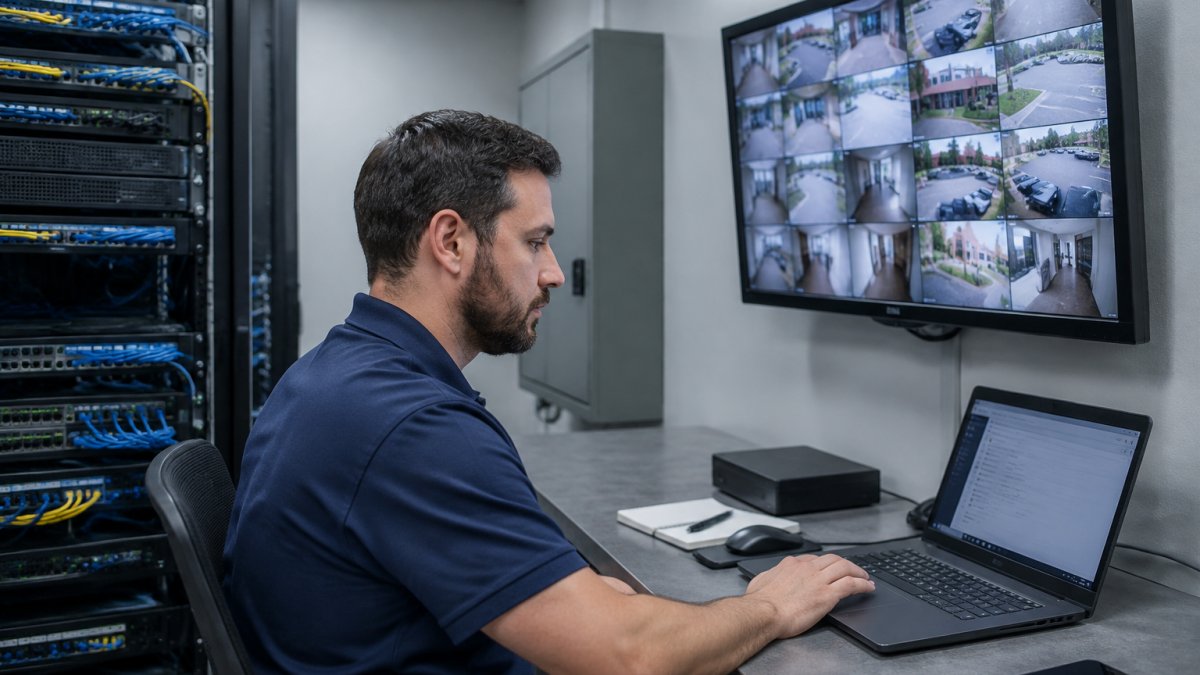
Step 1: Pick the Trigger and Tune the Threshold
Find the offline or connection-loss event in your platform’s alarm settings. It is usually listed under device health, system events, or alarm subscriptions rather than under motion detection.
Set the trigger to fire after a short run of missed check-ins, not a single one. Then confirm the system rechecks the camera before sending anything. This two-stage approach is what separates a useful offline alarm from a stream of noise your team learns to ignore.
Step 2: Assign Recipients and Delivery Channels
Assign alert recipients by role, not by whoever set up the system. An operations manager, a site supervisor, and your monitoring station should not all get the same event at the same time.
Then choose your delivery channels deliberately:
- Email alerts for the record and for people who check inboxes
- Push notifications through the mobile app for the people who need to act now
- Monitoring station routing through a platform integration for verified events
Step 3: Send a Test Notification Before You Trust It
Send a test notification and confirm it lands on every channel you configured. Then do the real test: unplug a camera or block its network port, and time how long until the alert arrives.
If it never arrives, you have found the failure before an intruder does. Repeat the test after any firmware update or network change.
IP Camera Offline Alerts When the Internet Goes Down
IP camera offline alerts depend on a path to deliver the message, and that path is often the same internet connection that just failed. This is the gap most setups never close.
If your alerts route through a cloud service, a dead internet connection means no alert leaves the building. Your cameras may be recording locally the whole time, but nobody knows the connection dropped until someone notices.
The fix is redundancy in delivery, not more alerts. Two approaches work in practice:
- Local processing and local alerting so detection and notification do not depend on the cloud
- Failover paths such as a secondary connection or cellular backup for delivery
Our on-site AI servers are built around that first principle. For a deeper look at keeping alerts alive when the connection drops, see our guide on how to keep AI security systems running during internet outages, and for the delivery side, our breakdown of AI security system failover options.
Troubleshooting Camera Disconnection and Recovery
Troubleshooting a camera disconnection starts with one question: is the problem the camera, the network, or the notification path? Work through them in that order, and test the whole chain rather than one link.
| Symptom | Likely Cause | What to Check |
|---|---|---|
| Camera offline, others fine | Cable, port, or power at that device | PoE port, cable, power restart |
| All cameras offline at one site | Switch, router, or uplink failure | Router restart, uplink status |
| Camera back but no recovery alert | Recovery notification not enabled | Alarm subscription settings |
| Alerts never arrive | Delivery path or recipient config | Test notification, spam folder |
| Constant false offline alarms | Threshold set too tight | Consecutive-miss count |
A table tells you where to look. A test plan proves the system works. Run this sequence once at installation and again after any firmware update, switch replacement, or ISP change:
- Confirm camera power. Check the PoE port LED or the camera’s own status light. If the camera has no power, nothing downstream matters.
- Confirm the physical link. Reseat the cable at both ends and check the switch port for link lights. A cable that passes data but fails under load is a common cause of intermittent offline alarms.
- Confirm Wi-Fi where used. For wireless cameras, check signal strength at the camera, not at the access point. A camera on the edge of coverage will drop under load even when it looks fine at idle.
- Confirm PoE budget. Add up the draw of every camera on the switch and compare it to the switch’s PoE budget. An overloaded switch will drop the last camera powered, and it will look like a camera fault.
- Confirm the router and uplink. If all cameras at a site drop together, the problem is upstream. Check the router, the uplink, and any intermediate switch.
- Confirm the NVR or VMS sees the camera. A camera can be online on the network and still be missing from the recorder if the channel is disabled or the credentials changed.
- Confirm internet access if alerts route through the cloud. If the delivery path depends on the cloud, a dead uplink means no alert leaves the building even though the cameras are fine.
- Confirm the alert reaches the recipient. Send a test notification and check every configured channel, including the spam folder and the mobile app’s notification permissions.
Watch out: the most common mistake is testing only the offline alert and never testing the recovery alert.
Recovery notifications matter as much as the outage alarm. They close the loop, confirm the camera feed is live again, and stop your team from dispatching on a problem that fixed itself. Configure them deliberately:
- Enable the recovery event in the same alarm subscription where you enabled the offline event. Many platforms ship with the offline alarm on and the recovery alarm off.
- Route recovery to the same recipients as the outage, or to a smaller group if you only want confirmation rather than action.
- Set a quiet period so a camera that flaps on and off does not generate a recovery alert every few minutes. A short quiet window collapses a flapping camera into one incident.
If a camera keeps dropping and recovering, treat it as a cabling or power problem until you have ruled both out.
Building a Camera Connection Loss Audit Trail
A camera connection loss audit trail is a time-stamped record of every disconnection and recovery, tied to the device and the alert. It turns “the camera was down” into evidence you can produce later.
Build it with these elements:
- Device details: camera name, location, and IP address on every event
- Timestamps: when the connection dropped and when it recovered
- Alert record: who was notified, when, and through which channel
This is where a school district or a retail chain with multiple sites separates a defensible record from a guess.
For the step-by-step build, our security camera AI audit trail setup guide walks through the configuration. If you need to know what makes a record hold up, read our guide to evidence-grade security video audit trails.
Book a Demo and Test Offline Alerts on Your Own Cameras
The only offline alert that matters is the one that fires on your cameras, on your network, at your sites.
At MDI AI Detection, our on-site AI servers work with the IP cameras and recorders you already own.
Pull a camera on purpose. Time the alert. Then decide.
If your current setup cannot tell you a camera went dark, that is the gap worth closing first. Reach out through our contact page to book a demo.
Frequently Asked Questions
Why does my camera keep saying device offline?
A camera reports offline when the recorder or monitoring platform stops receiving its stream. Common causes are a dropped network connection, a failed PoE port, a changed IP address, or a power restart the camera did not recover from. Check the camera’s connection status in device details first, then confirm the cable and switch port. If the camera is powered but unreachable, the problem is usually network-side rather than the lens or sensor.
Can an AI camera system send alerts during an internet outage?
It depends on where the detection runs. Cloud-dependent systems lose remote alert delivery when the internet connection drops. Systems with on-site AI processing, like MDI AI Detection’s servers, keep analyzing camera feeds locally and can trigger local alarms and notifications on the local network. Remote push notifications to phones still need a working connection, so plan an escalation path that covers both cases.
How do I verify that an offline camera alert is accurate?
Cross-check three things: the device’s connection status in the platform, the last timestamp of recorded video, and whether the camera responds to a ping or appears in the recorder’s device list. A well-built system logs each state change with a timestamp, so you can confirm the alert matched a real stream loss rather than a threshold glitch. Run a deliberate test by unplugging one camera and timing how long the alert takes to arrive.
What should I check when a camera stops sending alerts?
Start with the notification settings: confirm the camera is still subscribed to the offline alarm event and that recipients were not removed. Then check delivery channels, since an expired email token or a muted mobile app can silence alerts without changing the trigger. Finally, review the alert threshold; a long delay setting can make a brief disconnection invisible. Test with a single camera before rolling changes across a site.
