

Last Updated: October 23, 2026
Quick Summary
You can upgrade security cameras with AI without replacing them, because the AI runs on a separate server that reads the stream your recorders already produce. Check that each camera delivers RTSP at 1080p or higher and at least 15 fps, then add person and vehicle detection with real-time alerts.
- Pull the camera’s RTSP stream into VLC; if it plays, an AI server can usually read it.
- Analog cameras below 720p produce footage too soft for reliable detection and need replacement.
- Budget 2-4 Mbps per 1080p camera at 15 fps, so ten cameras need 20-40 Mbps.
- A pilot site setup typically takes 2-4 hours and follows a fixed six-step order.
- Test every new rule for 48 hours before routing it to a monitoring station.
Table of Contents
- Can You Upgrade Old Security Cameras With AI?
- What You’ll Need Before You Start
- Step 1: Run an AI Security Camera Compatibility Check
- Step 2: Choose Your Deployment Path for AI Video Analytics for Existing Cameras
- Step 3: Set Up On-Premise AI Video Surveillance
- Step 4: Configure AI Security Camera Alerts
- Step 5: Test Performance and Measure False Alarms
- Common Mistakes to Avoid
- Frequently Asked Questions
Can You Upgrade Old Security Cameras With AI?
Yes, in most cases you can upgrade security cameras with AI without replacing them. The AI runs on a separate server that reads the stream your recorders already produce.
Most guides get this wrong: AI isn’t a camera feature. It’s software that watches a video stream and flags specific events; the camera just has to deliver a usable stream. That reframe opens up upgrades installers often quote as rip-and-replace jobs.
What AI Can Detect on Existing Cameras
Modern analytics can spot people, vehicles, weapons, fire and smoke, and unusual behavior. Accuracy depends more on placement and resolution than camera age.
- Person and vehicle detection: filters out animals, rain, and moving branches
- Weapon detection: flags a visible firearm in frame
- Fire and smoke detection: catches early signs before sprinklers trigger
Nighttime detection is the weak spot. A camera that produces grainy footage at 2 a.m. will feed grain to the AI. Check low-light performance before you promise anything.
When Replacement Beats an Upgrade
Replacement wins in three situations: analog cameras below 720p produce footage too soft for reliable detection; cameras without a network stream can’t feed an AI server; and failing hardware keeps failing no matter what software you add.
What You’ll Need Before You Start
Gather these before touching any configuration:
- A camera inventory: make, model, resolution, and firmware
- Recorder details: NVR or DVR model, channel count, and protocol support
- Network documentation: switch ports, VLANs, and bandwidth
According to CISA’s guidance on securing IP cameras, default credentials and exposed streams are a leading risk in video surveillance systems. Change defaults before you connect anything new.
Step 1: Run an AI Security Camera Compatibility Check
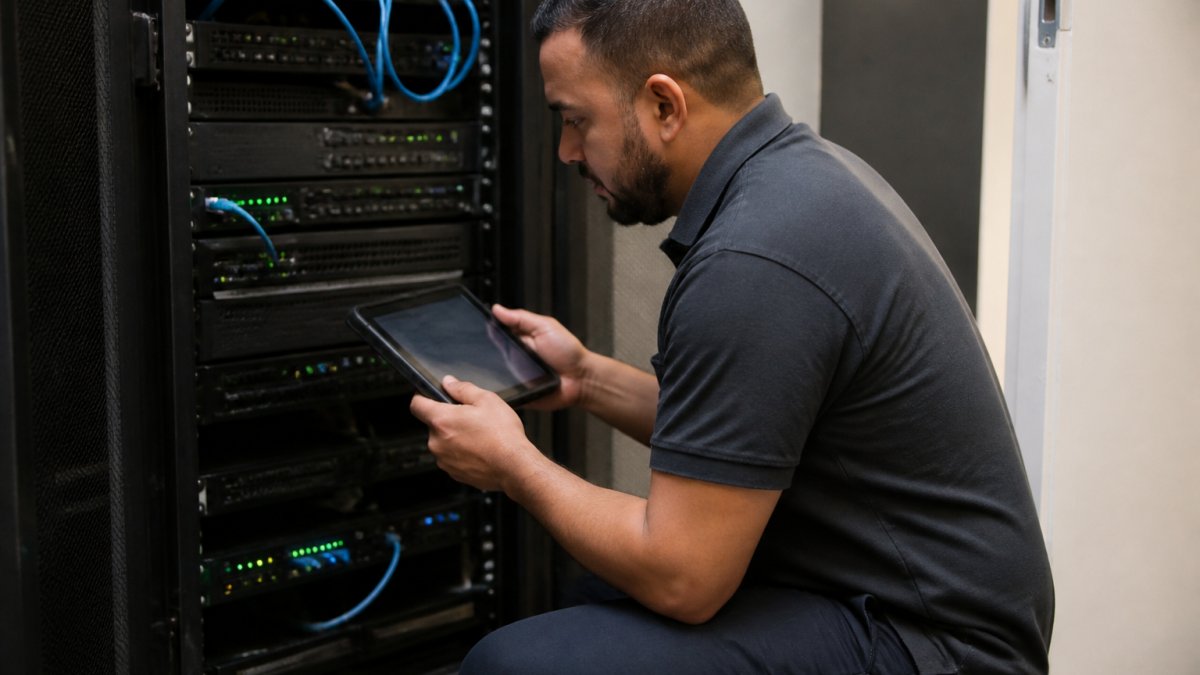
The fastest compatibility test: pull the camera’s RTSP stream into a media player such as VLC. If it plays, an AI server can usually read it too. If not, fix the stream before shopping for analytics.
The Pre-Purchase Compatibility Checklist
Work through this for every camera, not just the newest. One incompatible camera can force a separate gateway or a replacement, changing the budget.
- Stream output: Camera exposes RTSP, HTTP-FLV, or a manufacturer SDK. Analog-only cameras with no encoder need a video encoder or a hybrid DVR that can re-stream.
- ONVIF support: Camera supports ONVIF Profile S (streaming) or Profile T (advanced streaming and metadata). Profile T is not required for most analytics, but it simplifies event metadata.
- Resolution: 1080p or higher for person and vehicle detection at typical mounting heights. 720p can work at short range with a tight field of view; below 720p, expect missed detections.
Recorder and Protocol Compatibility
Most NVRs share a stream with a second system, but not all cleanly: some re-encode and drop the frame rate, others lock the stream to a single client. Test pass-through before buying.
- Analog cameras behind a DVR: The DVR is the compatibility layer. If it can output an RTSP stream per channel, the AI server sees it as an IP camera. If it can’t, a hybrid DVR or a standalone video encoder is the bridge.
- IP cameras on an NVR: Pull the stream directly from the camera when possible. Going through the NVR adds a failure point and often a lower-quality substream.
- ONVIF discovery failures: Usually a credentials, subnet, or firmware issue. Test with an ONVIF client before assuming the camera is incompatible.
What to Do When a Camera Fails the Check
Not every failure means replacement. A camera failing on stream output may only need an encoder; one failing on resolution can still serve as overview coverage while a newer camera handles detection; one failing on firmware may need a factory reset and re-flash.
For a deeper walkthrough of which cameras work with AI servers, see our guide on security camera compatibility with AI servers.
Step 2: Choose Your Deployment Path for AI Video Analytics for Existing Cameras
Three deployment paths exist: edge processing on the camera, on-premise processing on a local server, and cloud processing. Each trades cost against control, and the right choice usually comes down to how many cameras you have and whether video can leave the site.
| Path | Where AI Runs | Works During Internet Outage | Best For |
|---|---|---|---|
| Edge | On the camera | Yes | New cameras with built-in analytics |
| On-premise | Local server | Yes | Multi-site operations, legacy cameras |
| Cloud | Vendor data center | No | Single small sites |
Edge, On-Premise, or Cloud Processing
Edge processing is tidy but limited to compatible cameras. Cloud is easy to start but streams footage off site and stops when the internet drops. On-premise AI video surveillance keeps video local and keeps detecting during outages.
Total Cost of Ownership: Upgrade vs. Replace
Most quotes compare hardware only. A fair comparison includes software, edge hardware, storage, installation labor, and subscriptions over the same service life. Numbers vary by site; the structure doesn’t.
- Software or analytics license: Per-camera licensing is common on cloud platforms; on-premise servers often price by channel count or server capacity. Ask whether the license is perpetual or annual.
- Edge hardware: An on-premise AI server, a video encoder for analog cameras, or a small switch to isolate AI traffic. These are one-time costs.
- Storage: Event-based recording cuts storage sharply versus 24/7 capture. Plan retention around policy, not disk size, and remember that higher resolution and frame rate raise storage cost.
The decision to upgrade security cameras usually wins on cost when cameras are 1080p or better and the recorder passes streams cleanly. Replacement wins when most cameras are below 720p, the recorder can’t share streams, or hardware is near end of life.
Network and Storage Implications by Path
Edge processing keeps bandwidth on the camera link but limits you to cameras that support it. On-premise processing adds steady traffic on the camera VLAN; a 1080p stream at 15 fps typically needs 2-4 Mbps per camera, so ten cameras means 20-40 Mbps.
For teams weighing an offline setup, our guide on AI video analytics without internet covers the network design in detail.
Step 3: Set Up On-Premise AI Video Surveillance
On-premise setup follows a fixed order. Skip a step and you’ll chase ghost problems for weeks.
Total Time: 2-4 hours for a pilot site
Difficulty: Intermediate
- Rack the AI server near the recorder and connect it to the camera VLAN.
- Add each camera by RTSP URL, one at a time.
- Confirm the video stream shows live, uncropped footage.
- Assign detection rules per camera: person, vehicle, weapon, fire.
- Set recording policy: event-based recording saves storage.
- Connect the alert path to your monitoring station or team.
Expected Result: each camera shows a live feed with detection boxes drawn around people and vehicles.
Network and Hardware Requirements
Budget 2-4 Mbps per 1080p camera at 15 fps, so ten cameras means 20-40 Mbps of steady traffic. Keep AI traffic on its own VLAN so it never competes with point-of-sale or building systems. Event-based recording cuts storage sharply versus 24/7 capture, so plan retention around policy, not disk size.
Step 4: Configure AI Security Camera Alerts
Alerts are where most AI projects succeed or fail. A system firing 200 notifications a day gets muted within a week.
Set alerts by camera, not globally. A loading dock needs vehicle detection. A cash office needs person detection after hours. A perimeter fence needs both.
Reducing False Alarms With Camera-Specific Sensitivity
Tune each camera separately. Raise the confidence threshold on cameras facing streets, flags, or trees. Lower it on quiet interior cameras where any movement matters.
- Exclude zones: mask roads, sidewalks, and swaying foliage
- Set schedules: arm detection only during relevant hours
- Require dwell time: trigger only when an object stays in frame
Our guide on how to reduce false alarms from security cameras goes deeper on tuning. MDI AI Detection builds camera-specific sensitivity into its on-site servers for exactly this reason, and it sends verified alerts to platforms like Immix and Bold Manitou.
Test every new rule for 48 hours before routing it to a monitoring station. A week of clean data beats an apology to your alarm center.
Step 5: Test Performance and Measure False Alarms
Measure before you trust. Run a two-week test and log every alert against what actually happened.
| Metric | How to Measure | Target |
|---|---|---|
| Detection accuracy | True detections ÷ total real events | High and rising |
| False alarm rate | False alerts ÷ total alerts | Falling week over week |
| Alert latency | Event time to notification time | Seconds, not minutes |
| Nighttime performance | Repeat tests after dark | Matches daytime |
Walk test each camera at different times of day. Note where detection drops: glare, backlight, and low light are the usual culprits. Adjust placement or sensitivity, then retest.
Skipping the measurement step is the most expensive mistake in this process. Without baseline numbers, you can’t prove the system works, can’t defend an alert in court, and can’t justify the spend to your finance team.
Common Mistakes to Avoid
The upgrade fails for predictable reasons:
- Replacing recorders unnecessarily. Most AI servers read existing streams. Confirm before you rip anything out.
- Ignoring the network. Overloaded switches cause dropped frames, and dropped frames cause missed detections.
- One global sensitivity setting. Every camera sees a different scene.
The upgrade is a software and network project, not a camera project. Get compatibility and tuning right, and the cameras you already own become a detection system.
Privacy and data retention deserve a plan too. Keep video on site where policy allows, set retention limits, and restrict who can export footage. The FTC’s guidance on safeguarding customer data is a sensible baseline for handling recorded video.
For readers who want the full integration walkthrough, our step-by-step guide on integrating AI with existing IP cameras covers the wiring and configuration in more depth.
Upgrading legacy cameras is a compatibility and tuning problem, not a hardware problem. Get those right and your existing system produces verified, actionable alerts instead of noise. MDI AI Detection builds on-site AI servers that work with your current IP cameras and recorders, keep detecting during internet outages, and send alerts through Immix and Bold Manitou.
Frequently Asked Questions
Can I use my old security cameras on a new AI system?
Yes, in most cases. If your cameras output a standard video stream over RTSP or ONVIF, AI software can often ingest that feed without replacing the cameras. The upgrade usually hinges on recorder and protocol compatibility rather than the camera lens itself. Check whether your NVR or DVR can export a second stream for analytics, and confirm the camera resolution and frame rate meet the AI provider’s minimums. Legacy analog cameras may need an encoder to convert the signal to IP before AI processing.
Do I need to replace my cameras to use AI detection?
Not always. Many AI video analytics platforms are designed to work with existing IP cameras and recorders, so the camera hardware stays in place. Replacement makes sense when cameras are below the minimum resolution, have poor low-light performance, or lack the network access needed to stream video to an AI server. Run a compatibility check first; it is usually cheaper than a full rip-and-replace and avoids disrupting installed infrastructure.
Can AI security camera alerts work without an internet connection?
On-premise AI systems can keep detecting and alerting during an internet outage because processing happens locally on a server at the site. Alerts can still reach on-site staff and local monitoring stations over the local network. Remote notifications to phones or off-site monitoring may be delayed until connectivity returns, depending on how the system is configured. Confirm the failover behavior with your provider before deployment, especially for warehouses or schools with unreliable connections.
How do I test an AI upgrade before deploying it across my camera system?
Start with a pilot on a small set of cameras, ideally covering a high-traffic entrance and a perimeter zone. Run the AI system alongside your current setup for two to four weeks and log every alert as true or false. Measure detection accuracy, alert latency, and false-alarm rate per camera. Tune sensitivity settings per camera, then compare results against your baseline. Only expand to other sites once the pilot meets your thresholds for accuracy and operational fit.
